

Invite your team and set roles
Bring colleagues and clients into a brand, choose what each person can do, and review access regularly.
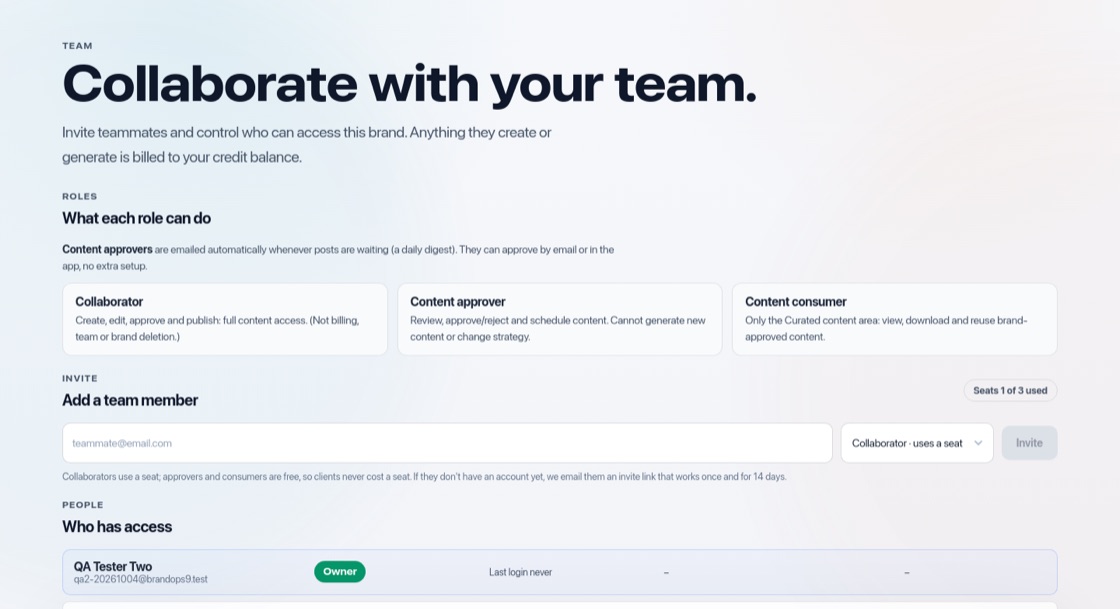
Invite people
Open Setup & Support → Team, enter an email address under "Add a team member", choose a role and press "Invite". The person joins this brand only. Someone who already has an account gets access straight away. Otherwise we email an invite link that works once and for 14 days, and the person shows as "Invite sent"; they sign in with the invited email address to accept it. "Resend invite" emails a fresh link with another 14 days.
Roles
- Collaborator: create, edit, approve and publish content. Cannot manage billing, the team or delete the brand.
- Content approver: review, approve or reject and schedule content. Cannot create content or change the strategy.
- Content consumer: only the Curated content library, to view, download and reuse approved content.
Change access
Use "Modify" to change someone's role, "Suspend" to pause access ("Reactivate" gives it back), or "Remove". Removing or suspending someone takes effect on their next click. Everyone on a brand uses the owner's credits.
Seats
A seat is a person who can create and edit: you as the owner plus every Collaborator, counted once across all your brands. Content approvers and Content consumers are free and unlimited, so clients never cost a seat. Free and Starter include 1 seat, Growth 3, Scale 10 and Agency 25. The role list says which roles use a seat ("Collaborator · uses a seat", "Content approver · free", "Content consumer · free"), and the Team page shows "Seats N of M used". An invite that is still open counts until it expires; suspending someone frees their seat. When all seats are in use, invite the person as a Content approver, free a seat or upgrade.
White-label (Scale and Agency)
On the Scale and Agency plans, Setup & Support → Team has a card "What your clients see". Fill in the Agency name, "Replies go to" (your email address), an Accent colour and a Logo (PNG, JPG or WebP, up to 1 MB), then press "Save branding". It applies once an agency name is saved, to every brand you own.
Clients then see your agency instead of BrandOps9: review and approval emails and team invites carry your name and logo, with your name as the sender and replies going to your address (the emails still come from our sending address so they are delivered). Shared document pages say "Shared by" your agency and use your accent colour, the management report says "Prepared by" your agency, and people working on your brands see your logo in the top bar of the app. On other plans the card shows that clients see BrandOps9.
Access review
Every six months (you can change this in Notifications) BrandOps9 reminds you by email and on the Dashboard to check who still needs access. Press "Review team access" to go through the list.