

Publish: your publishing plan and calendar
Set where and how often you post, put approved posts on the calendar, move them around, and see what is covered for the next 14 days.
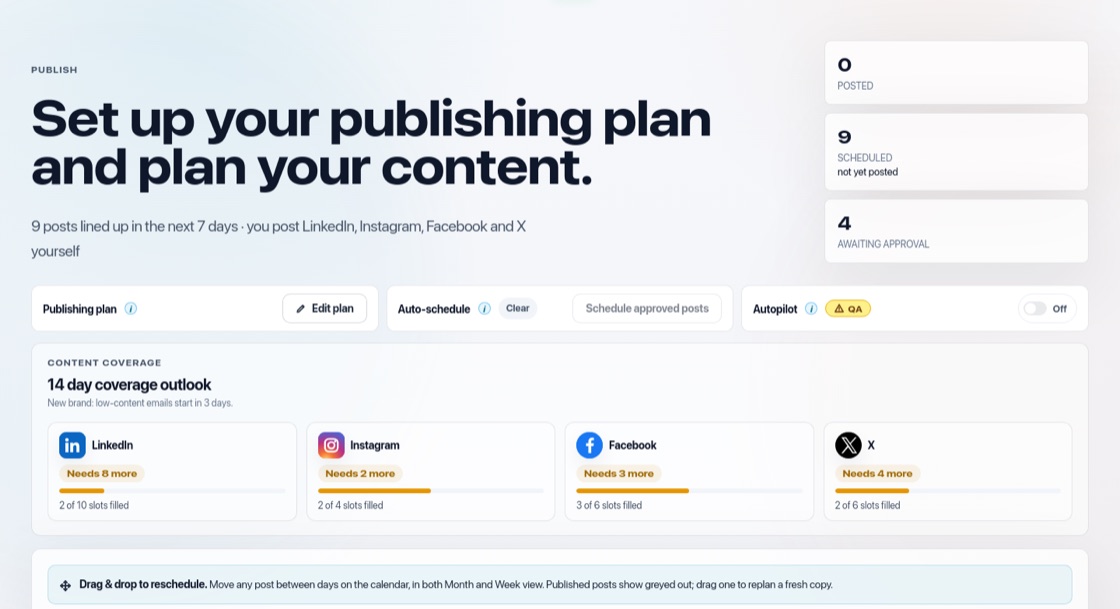
Your publishing plan
Open Publish in the top menu and press "Edit plan". Tick the platforms you post on and choose how often, such as "2× a week", "3× a week" or "Every weekday", and at what time. Each platform shows whether it auto-publishes or whether you will post it yourself. Under "Timezone & reminders" you set your timezone and who gets a warning when a platform runs low on content. Press "Save plan".
Put posts on the calendar
Approved posts wait under "Ready to schedule". Press "Schedule approved posts" (on the Auto-schedule line or under "Ready to schedule") to fill your open slots, soonest first. Or open a post with "Details & schedule" and choose a time yourself. Slots in your publishing plan that have no post yet show on the calendar as dashed "Open" chips with the platform and time; drag an unscheduled post onto that day, or let Autopilot fill them.
Move posts around
Drag any post to another day in the Month or Week view. Posts that are overdue stay on their day and are flagged. Dragging a published post asks whether you want to plan a fresh copy of it.
Coverage outlook
All four platforms are shown with how many planned slots are filled: "Covered", "Needs N more", "No content", or "Not configured" when a platform is not in your plan. It looks 14 days ahead. With Autopilot writing posts, the outlook looks exactly as far ahead as Autopilot fills (for example 7 or 21 days), so what it asks for and what Autopilot makes always match.
Automatic or by hand
On connected platforms, posts go out automatically at their time (on paid plans). For platforms you have not connected, we email you the ready-to-post text and image about 30 minutes before. Post it, then press "Mark posted". A platform set to "Dry run (safe)" in Connections shows "Practice mode" on Publish: its posts are planned and simulated, but nothing goes live until you switch it to live publishing.
Remove or reject
In a post's More menu, "Remove from calendar" keeps it approved so you can plan it again later. "Reject" removes it for good. "Modify" takes it off the calendar and sends it back through Approve.