Create and edit social posts
Where posts come from, how to edit a post into a new version, pick the version you want, and use your own image.
Where posts come from
Posts are created in four ways: from a campaign, as a LinkedIn poll you make yourself, by Autopilot when your queue runs low, and from Get found by AI when it writes LinkedIn posts to close a gap. Every post is written from your brand and strategy and scored before you see it. You can also ask Emma to draft a post for you.
Create a LinkedIn poll
Open Campaigns → New campaign and choose "Ask your audience". It shows when LinkedIn is in your publishing plan. Three steps follow: type your question or pick one of the suggestions, give 2 to 4 answers of up to 30 characters and choose how long it runs (3 days or 1 week), then check the short text BrandOps9 wrote to introduce the poll and press "Create poll". The poll is approved, saved in its own campaign ("Poll:" plus your question) and planned like any other approved post: Auto-Schedule puts it in the next open LinkedIn slot, or you plan it on the Publish page. Facebook, Instagram and X don't allow polls from apps, so polls are LinkedIn only.
Edit a post
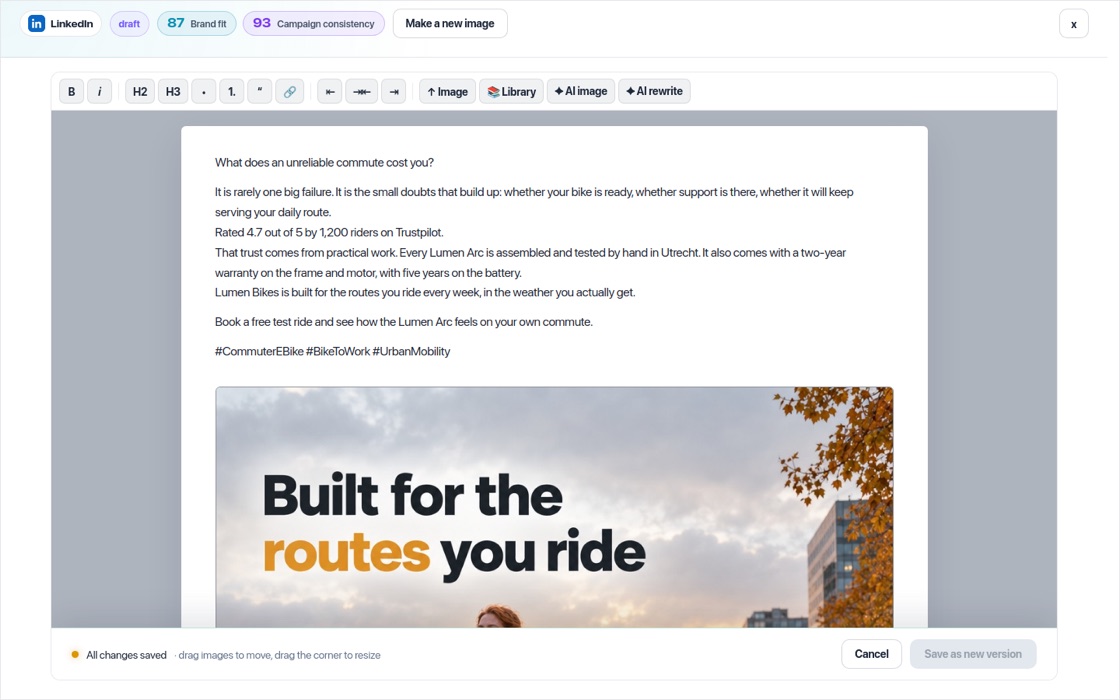
On the Approve page, press "Modify" on a post. The editor opens full screen. Change the text or the image and press "Save as new version". The earlier version is kept.
Pick the version you want
Use the "Editing" menu at the top to move between versions, each with its own quality score. Press "Make vN active" to use that version.
Images
Upload your own image in the editor, pick one from your media library, or generate a new one. "Make a new image" (in the More menu of a post, or at the top of the editor) makes a fresh image with the same rules as the first: your brand style, Words on images, the headline and call to action of an image-only post, and the layout of an inspiration. It replaces the current image; an approved post goes back to Approve so you can check it. Images are made in high quality, so a new picture takes a little while to make, usually under a minute. In the More menu you can also apply your brand kit, or turn the cover into a short video.