

Connect X (Twitter)
Post text and images to X: the developer steps, X's paid access levels, and how to avoid duplicate-post blocks.
What you get
BrandOps9 posts text and the post image to your X account, and X shares full results with the learning loop.
Unlike the other platforms, X charges for its developer access. The free level allows only a few posts a month, so regular posting needs one of X's paid levels. Check X's current pricing before you rely on it.
Connect it, step by step
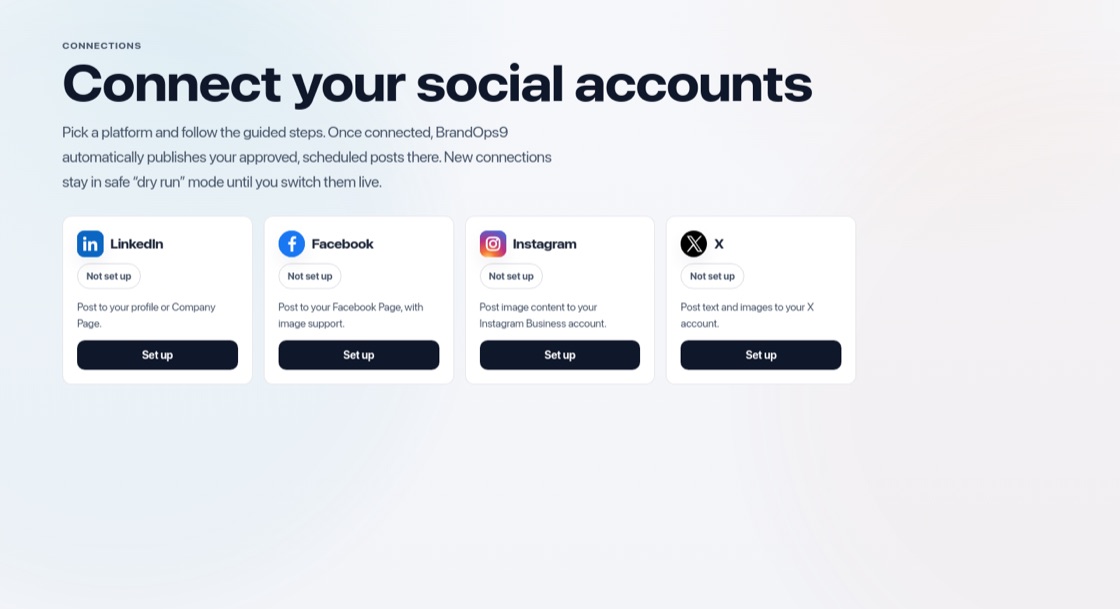
Go to Setup & Support → Connections and press "Set up" on X, then:
- Open the X Developer Portal, create a Project and an App inside it.
- Open the app's "User authentication settings" and turn on OAuth 2.0.
- Choose app type "Web App" and permissions "Read and write".
- Paste the redirect address BrandOps9 shows you into the Callback URI field.
- Copy the Client ID and Client Secret into BrandOps9, press "Save keys" and "Connect X".
Stay within the rules
- Never post identical text twice; X blocks duplicates.
- Posts are kept within X's length the way X counts it: every link counts as 23 characters. A post that is too long ends on a whole sentence, never in the middle of a link or hashtag.
- No bulk posting or spammy mentions and hashtags.
- Stay under the monthly post limit of your X access level.
- If you connected X before image support, press Reconnect to allow images.