Edit, version and approve documents
Edit a document without touching the live version, move between versions, and choose which version is live.
Why documents have versions
Every document keeps its full history. When you change a document, the live version stays as it is until you decide to replace it. It works the same way as versions of a post.
Edit a document
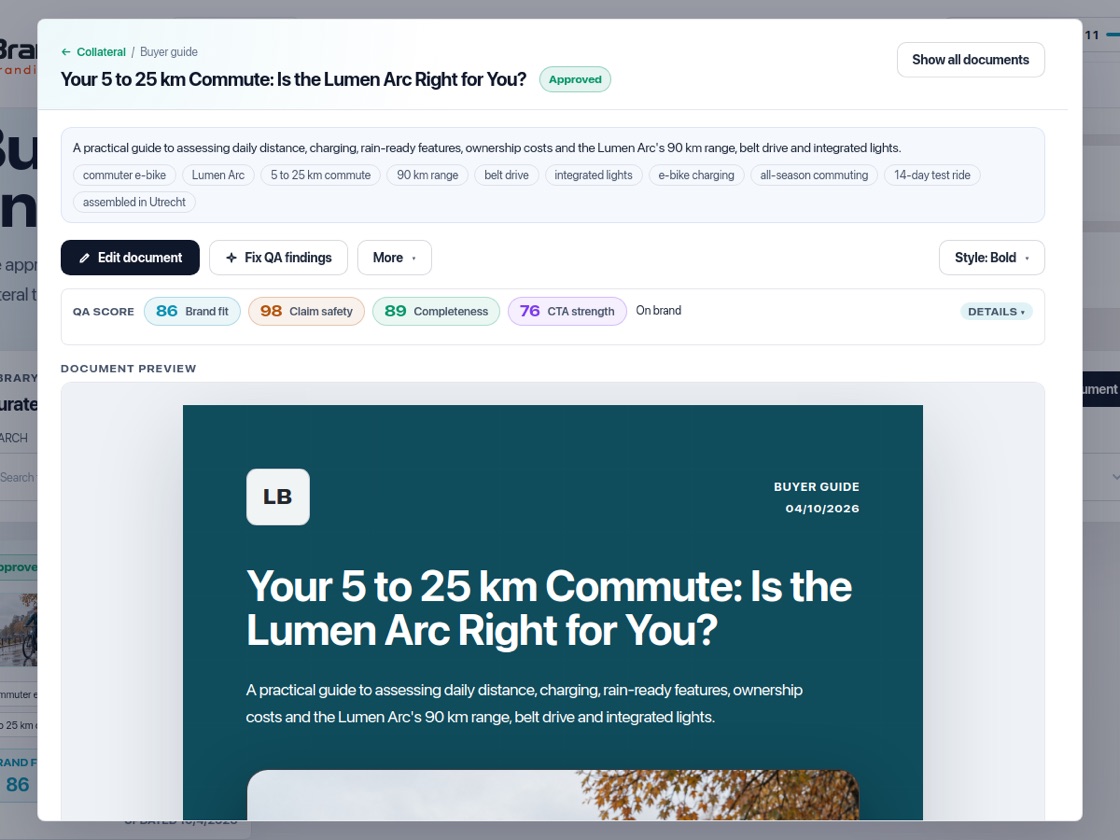
Open a document in Collateral and press "Edit document". Change the text, add images from your computer, your library or AI, and use "AI rewrite" on a selection. Press "Fix QA findings" to let BrandOps9 solve the quality findings, or "Run QA" to score it again.
Move between versions
The version chips at the top show every version, with the live one marked "live". Click an earlier version to see it.
Choose the live version
Press "Approve" to approve the version you are on, or "Make this version live" on an earlier one. The public link and the PDF and Word downloads always follow the live version.