
Collateral: your proof, and how to create it
What collateral is, why it backs up your campaigns, and how to create a document with AI, write it yourself or import one.
What collateral is
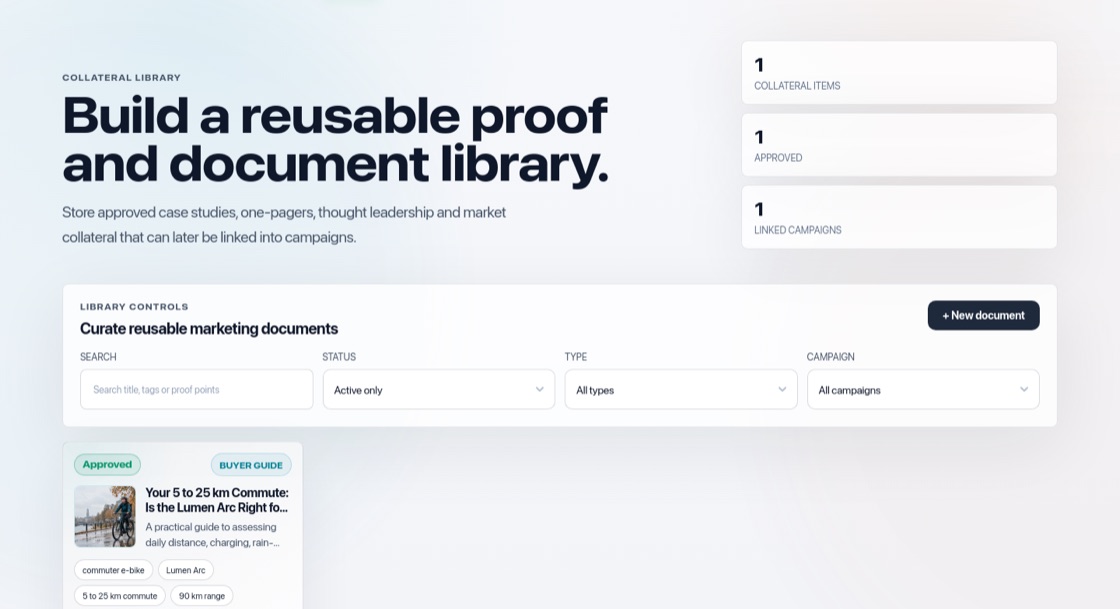
Collateral is your longer content: customer success stories, one-pagers, guides, checklists and more. Where a post is a short hook, a document is the proof behind it, something a prospect can read, download or be sent by a salesperson.
Why it matters for campaigns
Add an approved document to a campaign as proof and its posts are written from that real material, so they stay specific and believable.
Create a document
Open Collateral and press "+ New document". Choose one of these ways:
- Generate with AI: pick a document type, a working title, what it should cover and who it is for, then press "Generate document". Under "Fine-tune this document" you can change the language, call to action and proof.
- Write it myself: give it a title and type and start writing.
- Import an existing file: PDF, Word or Markdown.
- Start from inspiration: a one-pager, landing page or checklist in the style of something you like. See "Start from inspiration".
Ten document types
Customer success story, solution one-pager, thought leadership story, whitepaper, market analysis, buyer guide, checklist, ROI brief, objection handling brief and landing page copy.
Choose the look
Press "Style" on a document to pick a style and, under "Main colour for this document", one of your brand's primary or secondary colours. "Make this the default for new documents" saves your choice for the brand. If you never pick one, documents use your first primary colour. You can also set the default on Setup & Support → Brand, under Default document style, right below the palette (pick a "Main colour" there). Every document includes the link your call to action points to, and you can switch tabs or lock your screen while a document is being written.
Approve and share
Each document gets a quality score. Approve it to make it live. Then download it as PDF or Word, copy its public link, add it to a campaign as proof, or find it in Curated content. See "Edit, version and approve documents". To delete a document, use Delete in its More menu. While posts that are not yet published still link to it, BrandOps9 tells you which posts to change first; campaigns drop a deleted document automatically.