Plan a campaign
Build one campaign and shape it for every platform: let AI suggest it, write it yourself, start from inspiration, make image-only posts or ask your audience with a LinkedIn poll.
One picture for all platforms
A campaign's posts carry the same message, so BrandOps9 makes one picture and uses it on every platform. It is made, and charged, once. Want variety? Switch on "A different picture per platform" when you create the campaign, or later under "Show details" on the campaign. Instagram carousels always get a picture per slide, and "Make a new image" on a post always makes a new one for that post. An image-only post only shares a picture with posts that carry the same words on the image.
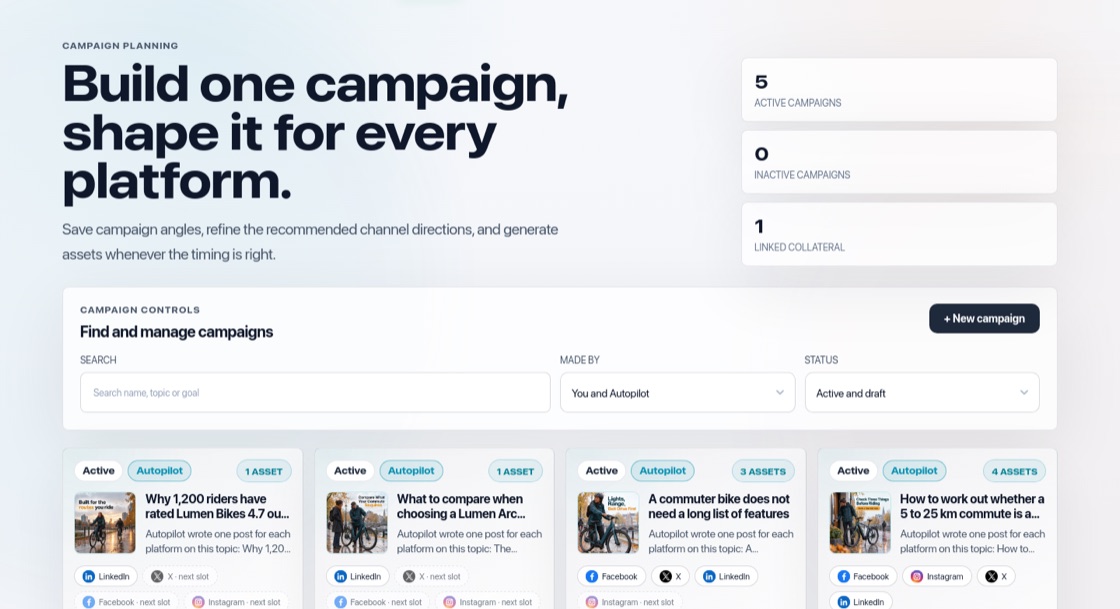
The campaign screen after the posts are made
Once a campaign has posts, how it was made folds into one line at the top: where it came from, the product it features, the platforms and the proof. Press "Show details" to open them, for example to add a platform or rewrite the posts. "Archive campaign" sits next to it.
What a campaign is
A campaign keeps a set of posts around one idea, with one audience, offer and call to action. BrandOps9 scores each post both for brand fit and for how well it fits the campaign.
Start a campaign
Open Campaigns and press "+ New campaign". First you can add approved documents as proof (optional). Then choose one of these ways:
- Let AI suggest campaigns: press "Suggest campaigns". You can guide the suggestions with an image, a name or theme, a call to action, or what it should be about. Each proposal shows the audience, offer, call to action and how you will measure it.
- Write it myself: give the campaign a name, write your message in the editor, then choose the platforms. A photo you upload yourself is used as it is.
- Start from inspiration: build a campaign in the style of an ad, post or template you like. See "Start from inspiration".
- Ask your audience: a LinkedIn poll in three steps, shown when LinkedIn is in your publishing plan. See "Create a LinkedIn poll" in "Create and edit social posts".
Built from inspiration
A campaign made with "Start from inspiration" shows "Built from inspiration" at the top, with the picture it was based on and what you chose to keep, such as Idea, Layout or Photo style. Under "Rewrite the posts" you can press "Closer to the inspiration" or "More our brand" to get new versions of all posts and images; your current versions stay. If a style needs a real fact, such as an offer or a customer quote, it only uses one from your Brand facts.
Image-only posts
Switch on "Let the image do the talking" when you pick the platforms or a suggested campaign. The image then carries the headline and the call to action, and the post text is one short line plus your link. The preview shows exactly that line. This works on every platform. Autopilot also makes about one image-only post in five when Words on images is on for your brand.
LinkedIn polls
Choose "Ask your audience" under "+ New campaign" to make a poll. It shows when LinkedIn is in your publishing plan, because Facebook, Instagram and X don't allow polls from apps.
- Step 1: type your question, or pick one of three suggestions based on your strategy.
- Step 2: give 2 to 4 answers of up to 30 characters, and choose 3 days or 1 week.
- Step 3: check the short text BrandOps9 wrote to introduce the poll, change it if you like, and press "Create poll". The poll is then approved and saved in its own campaign, "Poll:" followed by your question, so you find it in Campaigns with its results.
- Timing works like any other approved post: with Auto-Schedule on, it goes into the next open LinkedIn slot; otherwise plan it on the Publish page.
- Change the question, answers or duration later with "Modify" on the Approve page. A poll has no image, and Autopilot never approves a poll for you.
Create the posts
Press "Write the posts for this campaign" (or "Generate platform posts" when you wrote it yourself). BrandOps9 writes a post per platform with a matching image. Platforms that are not in your publishing plan are marked "Off-plan". The new posts go to the Approve page for review.
Each post on LinkedIn, Facebook and X ends with the link your call to action points to: the campaign's landing page, otherwise the landing page in your strategy, otherwise your website. A hashtag never appears twice in one post. You can switch tabs or lock your screen while the posts are written; they appear when they are ready.
Good to know
If your strategy is not complete yet, you are asked to finish it first, because suggestions are built from it. When a campaign has run its course, choose "Archive campaign".