Set up your brand and strategy
Create a brand from your website or style guide, check the brand identity, answer the strategy questions, and confirm both.
Why this comes first
Everything BrandOps9 writes is built from two things: your brand (who you are and how you sound) and your strategy (who you are for and what you sell). Get these right and every post, document and campaign lands on message. Leave them thin and the quality scores stay low.
Create a brand
Open the brand switcher at the top left and choose "+ New brand". Type your website address and press "Create brand". BrandOps9 reads your site and fills in your brand and a starting strategy, so you begin from real material. Have a style guide instead? Choose "Upload it instead" and add a PDF, Word or text file.
Check your brand identity
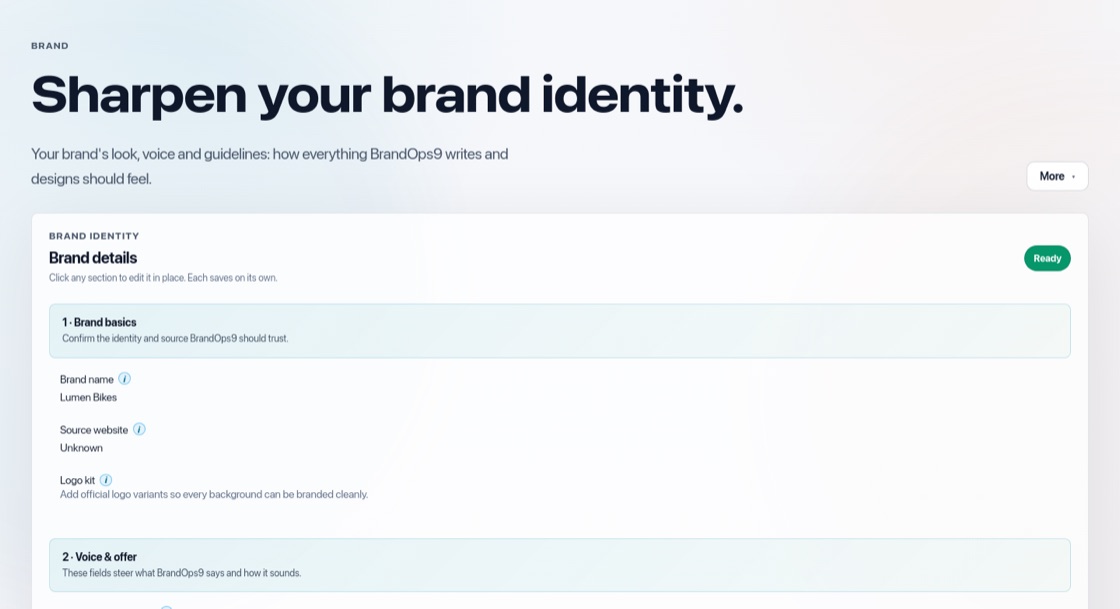
Open Setup & Support → Brand. The page is split into six groups you can review and edit:
- Brand basics: name, website and your logo kit (main logo, versions for light and dark backgrounds, and a compact mark).
- Voice & offer: how it should sound, how readers are addressed, your products and services, and writing guidelines.
- Visual identity: visual guidelines, imagery direction, what images must include or avoid, fonts, and Words on images: A short headline (the default, up to six words on each new post image, also for Autopilot and Get found by AI posts; on an Instagram carousel each slide shows its own few words, with the post headline on the first; the quality check checks the spelling and that each slide picture matches its slide) or Off (images stay text-free).
- Language guardrails: words to use and words to avoid.
- Palette hierarchy: your primary and secondary colours, with the default document style and its main colour right below.
- Source evidence: reference copy from your site, and up to 16 website photos new images may use as references. Approve the best, exclude the wrong ones, or press Add your own photos when the website blocks automated readers or has few photos; your own photos are approved references straight away.
Your brand facts
The facts posts may state as true, such as prices, offers, customer quotes and results, have their own page: Setup & Support → Brand facts. See "Brand facts: what BrandOps9 may state as true".
Arrange your logo kit
The logo kit has four spots: Primary logo, For light backgrounds, For dark backgrounds and Compact brand mark. Drag a logo onto an empty spot to copy it there, so it is used in both places; if that spot already has a logo, the two swap. Empty spots say "Drop a logo here". Changes save straight away, and it works with a mouse or by touch on a tablet or phone. While editing the logo kit, you can also drag a logo we found on your website onto a spot. "Upload" takes a PNG, JPG, WebP or SVG logo, and SVG logos found on your website work too.
Answer the strategy questions
Open Setup & Support → Strategy. Each question is in plain words: who you are trying to reach, the business goal, what you offer, your call to action, why people should believe you (your proof points), what makes people hesitate, how you want to be seen, where people should go, and which language to write in. The more specific the answers, the better your content scores.
Confirm both
At the bottom of each page you are asked "Does this look like you?" and "Is this the right strategy?". Press "Confirm brand identity" and "Confirm strategy" when they are right. That completes the first two steps of your growth path. Saving a change, a logo or a photo choice does not confirm anything; only these buttons do. You can change anything later; press "Refresh from website" in the More menu to read your site again.